
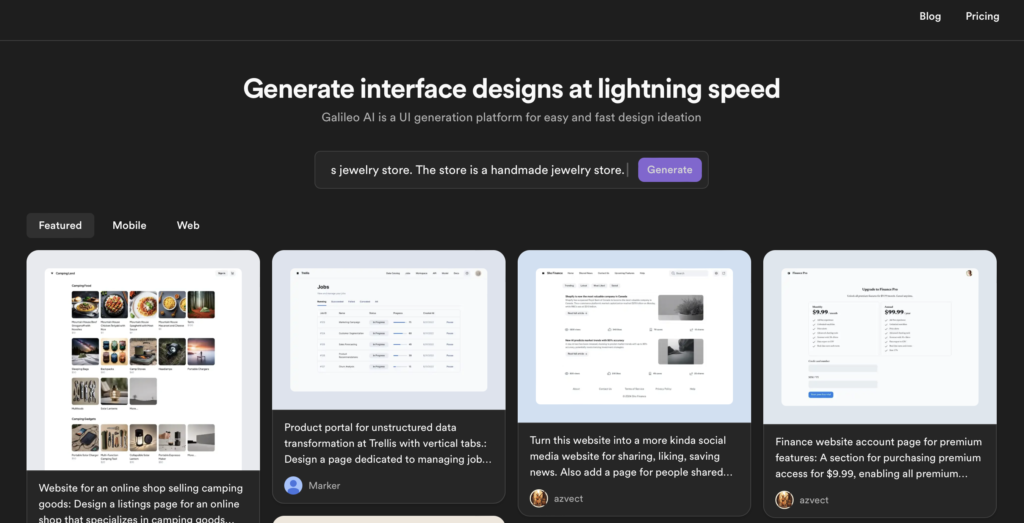
In the world of design of UX / IUautomation is increasingly present. Galileo AI is a powerful tool that promises to facilitate the process of creating interface designs. Today I will tell you how this tool allows you to create the design from a web design to an app design and I will give you the example of an ecommerce of jewelry, guiding you step by step, from planning to exporting the design to Figma.
What is Galileo AI and how can it help you in design?
Galileo AI is a tool based on artificial intelligence designed to assist designers in the rapid creation of user interfaces. Its main value is the ability to automatically generate design proposals based on textual inputs. In our case, we will use it to design a jewelry ecommerce app, a process that, with traditional tools, can be long and tedious.
Step 1: Define Business
Before starting the Galileo design process, it is essential to provide a detailed description of the business. This allows the IA to understand what type of content should be prioritized.
For example, imagine that we want to design a app for sale of luxury jewelry. It is important to define the goal of the app which is to attract an audience with elegant interfaces and functions that facilitate the purchase.
Step 2: Chat with Galileo AI: Defining the sections of the app
Once you're clear on the concept of your business, it's time to tell Galileo AI what you're looking for. You just need to briefly describe the characteristics and objective of your app, and the tool will present a base structure to work. From here on you have a structure like the example:
Structure suggestions:
- Home: Presentation of outstanding products and special collections.
- Product catalogue: Filter by categories such as rings, necklaces, earrings.
- Product details: Images, detailed descriptions, reviews and customization options.
- Shopping cart: Quick visualization of the selected products.
- User profile: Shopping history, shipping details and saved payment options.
- Favorites: User's wish list.
- Offers: Special promotions and discounts.
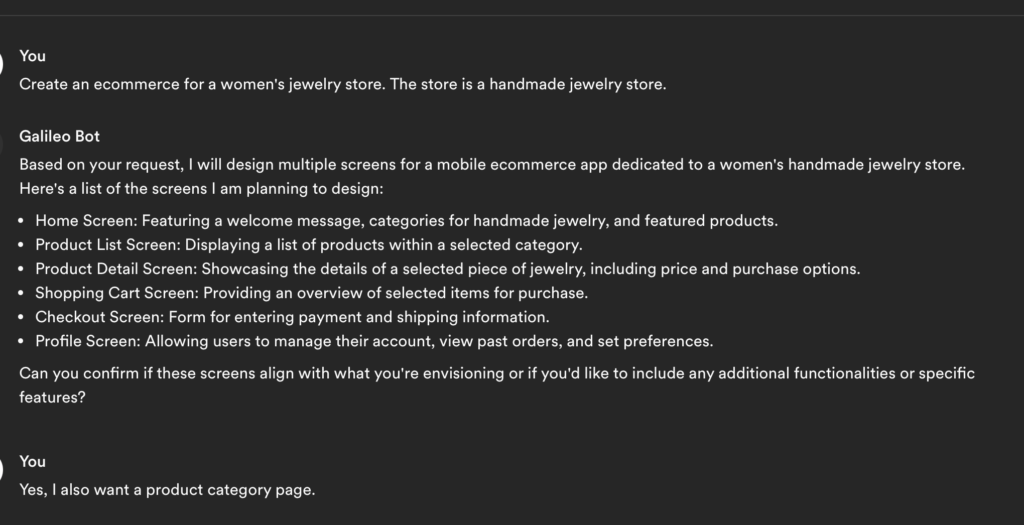
Once you have defined the pages you want and the information that will appear on each of them, you will then be able to ask for the pages you want to design.
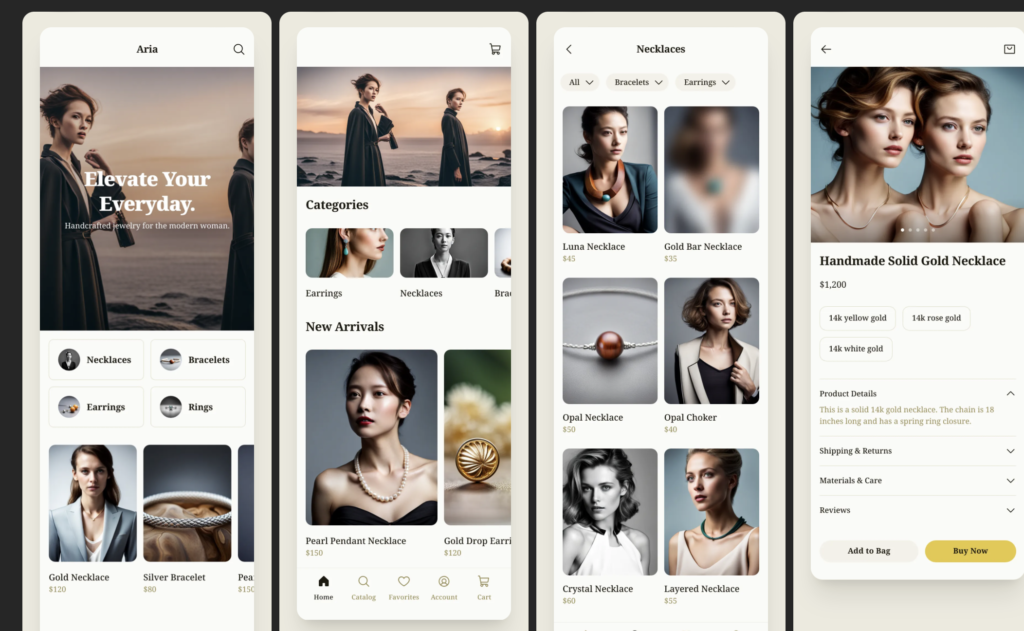
Step 3: Design of the screens in Galileo AI
Once we have the defined structure, Galileo AI the design screens. What is surprising is the speed with which it does so, generating visual proposals based on the information we provide.
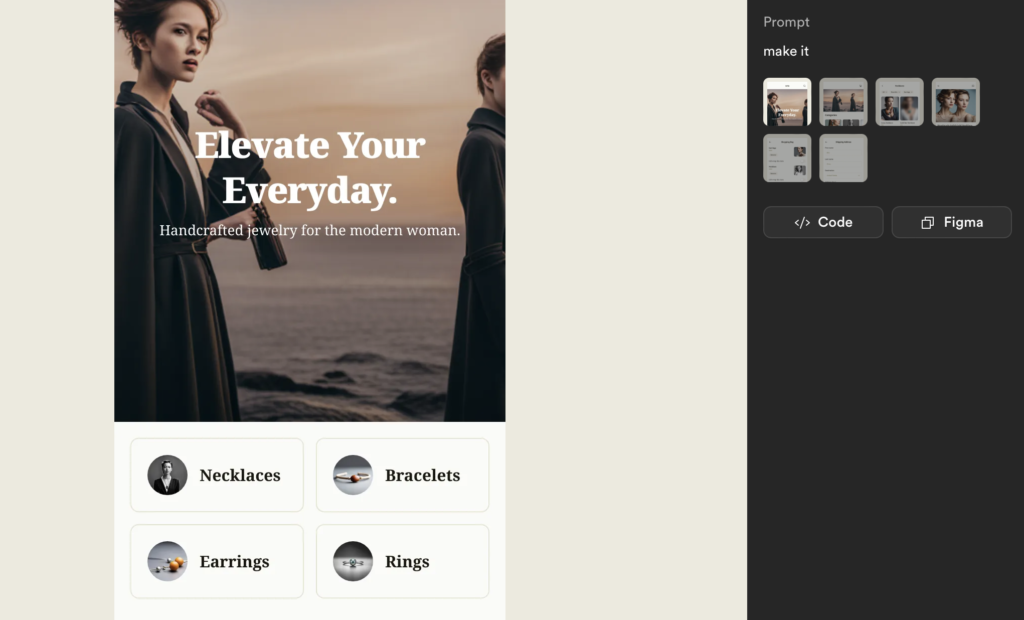
Each screen is customizableAnd you can. export design directly in code format or to design platforms such as Figma as shown below:
Export to Figure: Why is it the best option?
The truth is that if you ask me what my preferred option is, I will always say that export the design to Figure. Since it not only gives you more control, it also allows you to make collaborative adjustments with your team. At this point, you can adjust typographs, colors and interface components to make sure that the design is not only functional, but also attractive and in line with the branding strategy business.
In conclusion, Galileo AI is a useful tool to start the design of interfaces, allowing you to gain time and get a clear outline of what you want. However, it is important to bear in mind that, although the IA does a great job in initial structuring, the human eye and the experience in UX / IU design are essential to adjust the details and create a truly fluid and aesthetically attractive experience.
I recommend you always consider the key elements on each page of your app before closing the design, such as usability, calls to action and easy navigation. Start experimenting with Galileo and find out how you can optimize your design process!

UX / IU Designer and Digital Marketing Specialist
Creating intuitive experiences and effective strategies.