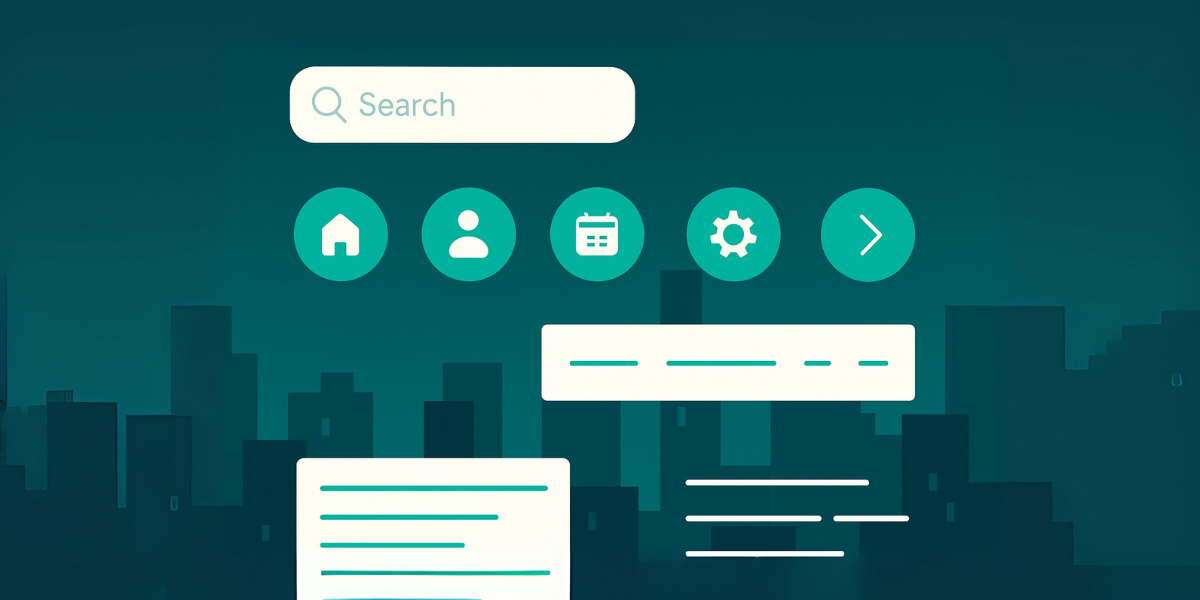
The navigation components are key to any digital interface. These are the elements that allow the user to move through a site or application, understand where it is, and make decisions about what to do next.
As a UX / IU designer, I have created this visual guide in order to offer a clear and practical reference to understand the main navigation components and when to use them according to the context. Because when we design thinking about how the user sails, the experience significantly improves.
Pagination
The pagination allows the user to move between content divided into numbered blocks. It is ideal when we have a lot of elements that it is not appropriate to show all at once.

Recommended uses:
- Extensive lists (products, articles, search results)
- Segmented data tables
- Systems where reading flow control is required
Advantages:
- Improves content organization
- Allows the user to move between pages without saturation
- Reinforce the sense of progress and location within the interface
Icons
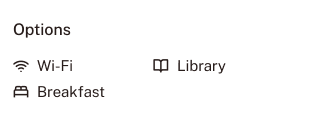
The Icons are graphic representations that symbolize actions, tools or sections. Well designed, can reduce cognitive burden and facilitate visual exploration.
Recommended uses:
- Quick action buttons (edit, delete, share)
- Navigation menus
- Mobile interfaces with reduced space
Advantages:
- Quick and universal visual communication
- Reinforce the meaning of the interface elements
- They can be used alone or with text, depending on the context
Search Field
The field of search allows the user to enter a key word to find relevant content within a system.

Recommended uses:
- Sites with large volume of information (ecommerce, media, educational apps)
- Dashboards or databases
- Context aid or internal navigation
Advantages:
- Increases efficiency in information search
- Improving user autonomy
- Reduces navigation times
Tags
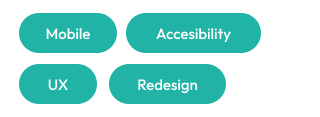
The labels or chips are visual elements that act as filters, categories or state identifiers.
Recommended uses:
- Classify content by subject, technology or level
- Active filters in results lists
- Representation of attributes (e.g. "new," "popular," "accessible")
Advantages:
- Facilitate segmentation and visual organization
- Quick interaction: allow to activate or disable filters with one click
- They strengthen user's control and customization of experience
Tab Bar
The tab bar organizes different sections within the same screen or application, presenting them as horizontal options accessible.

Recommended uses:
- Mobile applications
- User panels with different views (profile, calendar, configuration)
- Systems requiring rapid navigation between sections
Advantages:
- Clear and compact organization
- Reduction of navigation time
- Favorates visual recognition rather than memorization
Menu
The navigation menu It groups links to different sections within a hierarchical structure. It may be located at the top, side or unfold from an icon.

Recommended uses:
- Web sites with several sections
- Applications requiring structured navigation
- Quick access to settings or tools
Advantages:
- Facilitates guidance within the system
- Allows access to different hierarchical levels
- It adapts to different devices with responsive designs (hamburger menu, sidebar)
Breadcrumb
The breadcrumb or «navigation route» indicates to the user the hierarchical path that has followed within the interface, from the start to the current page.

Recommended uses:
- E-commerce with categories and subcategories structures
- Blogs or technical documentation
- Applications with multiple navigation levels
Advantages:
- Improving orientation and context
- Allows to go back at previous steps easily
- Strengthening the information architecture
Image Slider
The image slider allows to display visual content (images, videos) sequentially, either automatically or through interaction.

Recommended uses:
- Ports of products, galleries or portfolio
- Information Banners
- Visualization highlighted on main pages
Advantages:
- Take advantage of the unsaturated visual space
- Allows to highlight multiple content without taking more place
- Improves experience in mobile devices
Design the navigation thinking of the user makes the difference
Intuitive navigation is not just aesthetic, it's strategy. When the navigation components are well designed and aligned with the product architecture, the user feels comfortable, oriented and controlled.
My intention in creating these components is to provide a functional and visually clear guide that helps to structure user-centred digital systems. Because good navigation can't be seen... it just flows.
Would you like me to transform this guide into a downloadable resource or a mini visual library? Write to me and I'll make her happy.

UX / IU Designer and Digital Marketing Specialist
Creating intuitive experiences and effective strategies.