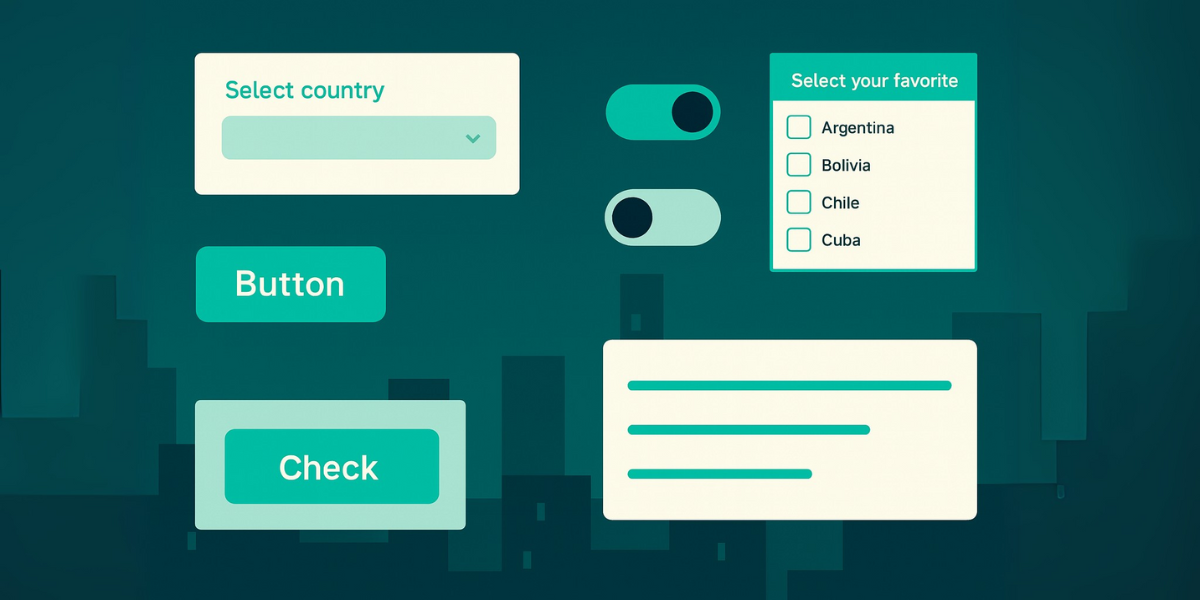
The input controls or input controls are key components in the design of digital interfaces. Its function is to facilitate user interaction with the system, allowing the data introduction, choice of options or implementation of actions in a clear and efficient way.
This guide has been designed as a visual and functional reference tool for UX / IU design and digital product development professionals. The aim is to offer a structured classification of the main input elementswith indications of their proper use and design recommendations based on usability criteria and user experience.
Dropdown List
The dropdown list allows you to select a single option within a list of hidden alternatives, which is displayed by clicking or taping the field.

Recommended uses:
- Country selection, category or single value
- Forms with multiple fields
- Compact filters with many options
Advantages:
- Saving on-screen space
- Visual noise reduction
- Prevention of multiple-choice errors
Toggle Switch
The toggle allows to activate or disable an option with a single gesture, emulating the operation of a switch.
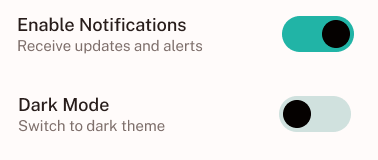
Recommended uses:
- User Preferences Settings
- Activation of specific features
- Control of binary states (active / inactive)
Advantages:
- Quick and understandable interaction
- Immediate visual feedback
- Facilitates direct decisions without intermediate steps
Button
The button is the component responsible for initiating an action or process within the interface.

Recommended uses:
- Sending of forms
- Main actions in a user flow
- Call to action (CTA)
Advantages:
- High visibility and visual impact
- Allows to hierarchy actions (primary, secondary, disabled)
- Reinforce navigation and conversion
Slider
The slider o Slider control facilitates the selection of a value within a given range by means of a horizontal or vertical gesture.
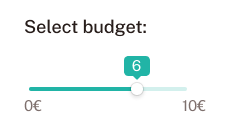
Recommended uses:
- Volume, brightness or price adjustments
- E-commerce or dashboards interval filters
- Custom limits configuration
Advantages:
- Continuous and intuitive interaction
- Allows quick comparison between values
- It occupies little space in front of options lists
Checkbox
The checkbox allows the user to select one or more independent options within a list.
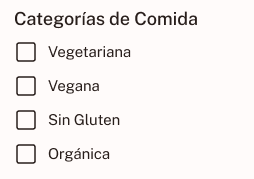
Recommended uses:
- Multiple selection in forms
- Filters by attributes or preferences
- Confirmation of conditions or acceptance of terms
Advantages:
- High state visual clarity (selected / not selected)
- Allows for non-exclusive decisions
- Low level of cognitive complexity
List Box
The list box displays all available options within a visible box, allowing single or multiple selection according to configuration.
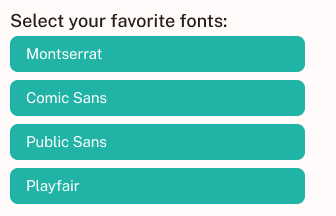
Recommended uses:
- Interfaces with extensive data management or lists
- Mass selection of elements
- Technical or administrative systems
Advantages:
- Direct access to all options
- Multiple selection possibility without deploying menus
- Suitable for contexts with higher information density
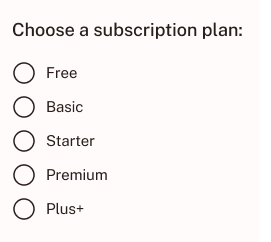
Radio Button
The radio button allows you to select a single option within a closed set of alternatives.
Recommended uses:
- Questions with exclusive options
- Selection of payment methods, user type or language
- Forms with binary or limited decisions
Advantages:
- Clarity in available options
- It requires little interaction to decide
- Reduces ambiguity in data entry
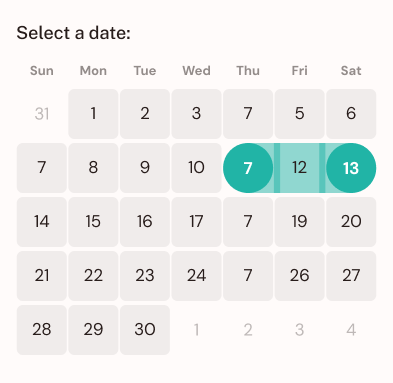
Date and Time Picker
The date / time picker facilitates the precise selection of dates and / or hours by means of calendar or time selector visual interfaces.
Recommended uses:
- Programming of events, appointments or reservations
- Collection of birth dates or maturities
- Configuration of reminders or planned tasks
Advantages:
- Minimizes errors in manual introduction
- Improves experience by showing contextual options
- Supports local date formats and accessibility
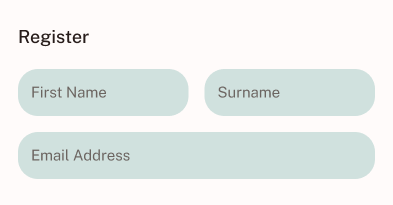
Text Field
The Text field is the basic component for the free entry of alphanumeric information.
Recommended uses:
- Personal data collection (name, email, address)
- Comments, messages or descriptions
- Contact forms or login
Advantages:
- High content flexibility
- Compatible with dynamic validations
- Scalable as needed (single line or text area)
Understand and correctly apply input controls
An effective interface design requires not only aesthetics, but also functionality and logic in interaction. The choice of appropriate control in each case of use is key to ensuring user accessibility, efficiency and satisfaction.
This guide has been created to provide a clear, coherent and visually structured reference to support both the design phase and the implementation of digital products. Understanding the nuances of each component allows us to make better decisions and create experiences that really work.
Would you like to have this guide in downloadable format or to adapt it as a graphic resource for your equipment or networks? I'm glad to help you.

UX / IU Designer and Digital Marketing Specialist
Creating intuitive experiences and effective strategies.