Figure has recently integrated a series of tools based on artificial intelligence, and one of the most interesting is Make an image, a function that allows to generate custom images directly within the canvas from descriptions in natural language. I have tried it as part of my day-to-day UX / UI designer, and here I share the experience with a practical example: a blue and yellow guacamayo eating a strawberry.
What is "Make an image" and what does it bring?
Make an image is part of the new ecosystem of intelligent functions in Figure, designed to accelerate creative and design processes. It allows to generate original images from a text prompt, something especially useful in early design phases or to enrich prototypes without leaving the working environment.
The idea is that you can view concepts quickly, without relying on external image banksand with the possibility of iterating from the same prompt or by means of new indications.
Step by step of the test
I'm going to tell you step by step a test I've done of creating a parrot image, so you can see how much and what detail this works correctly and what it offers me of results. I hope you get my advice!
Step 1: Activating the tool
From the lower bar of FigureI selected the IA icon. Open a panel where you can write a prompt, reuse previous images or explore suggested tags like «Painting of...», «Abstract»etc. In my case I wrote:
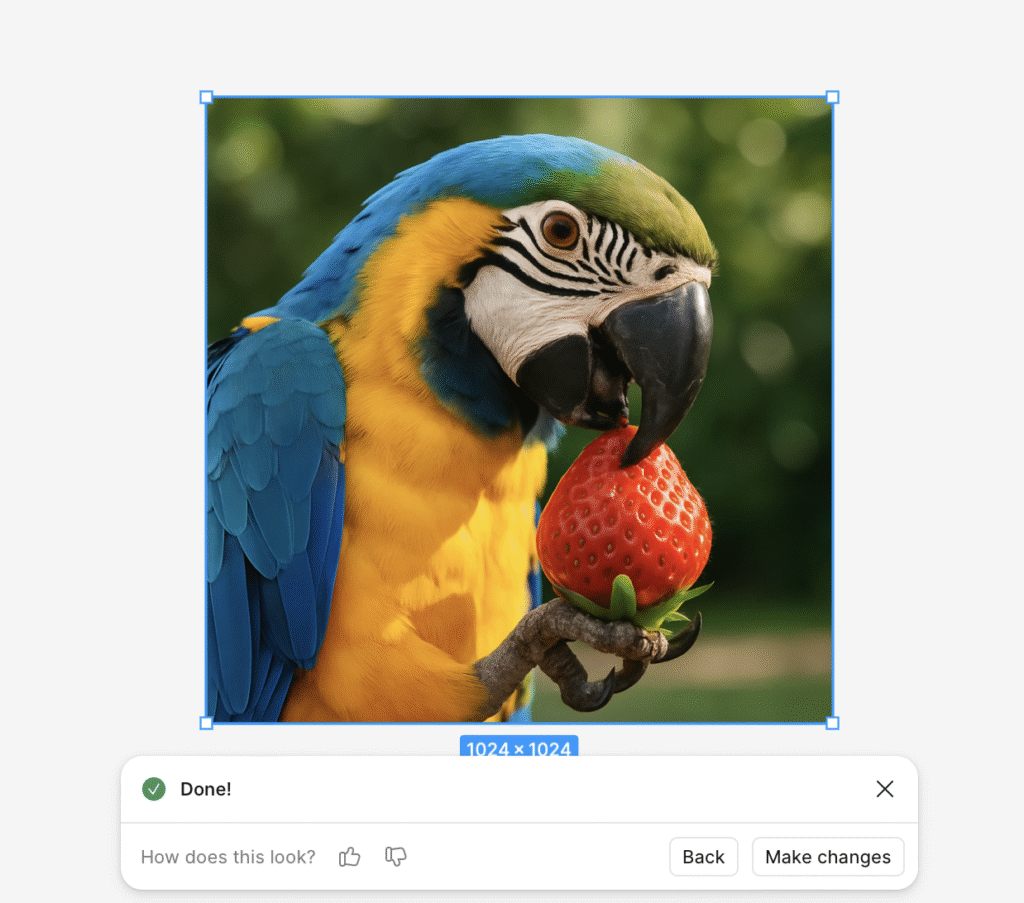
"Create an image of a parrot eating a strawberry. The parrot is a blue and yellow macaw. It has the strawberry on its legs."
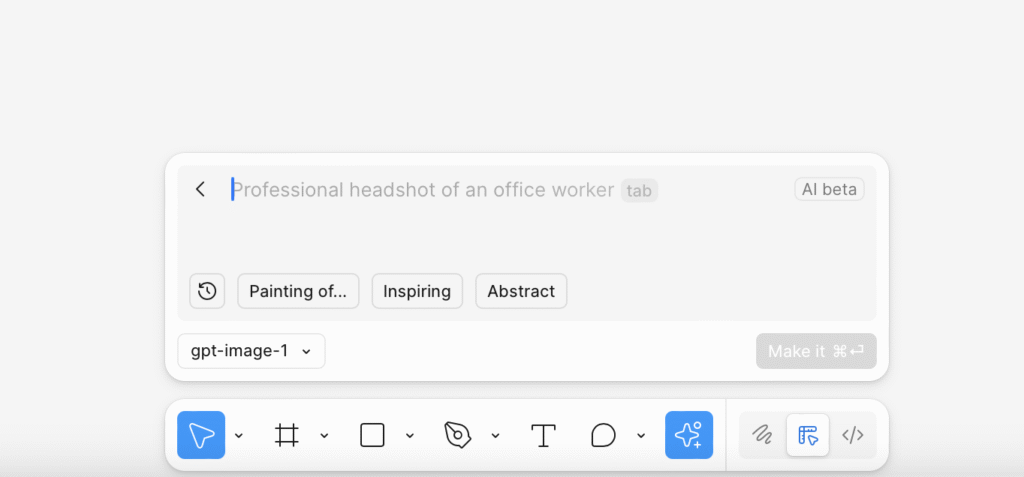
When pressing Make itThe IA starts processing.
Step 2: Image generation
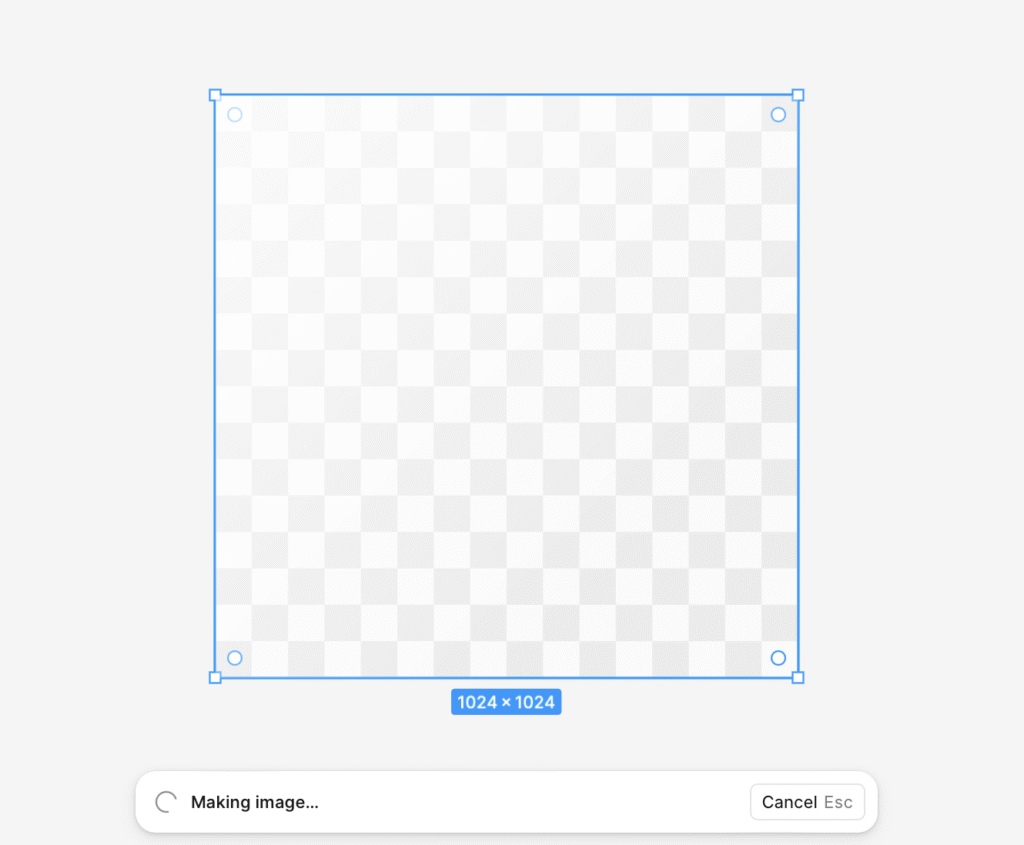
In a few seconds, Figure presents a box of 1024 × 1024 px with the message "Making image...". The waiting time was very reasonable and the experience was quite fluid.
Step 3: Outcome
The result: a Realistic blue and yellow guacamayo, holding a strawberry between his legs, exactly as he had described it. The image was clear, well lit and with a level of detail more than enough for mockups or visual content.
Step 4: Adjustments with new prompt
One of the most powerful functions is that you can adjust the image generated with new indications. I wrote:
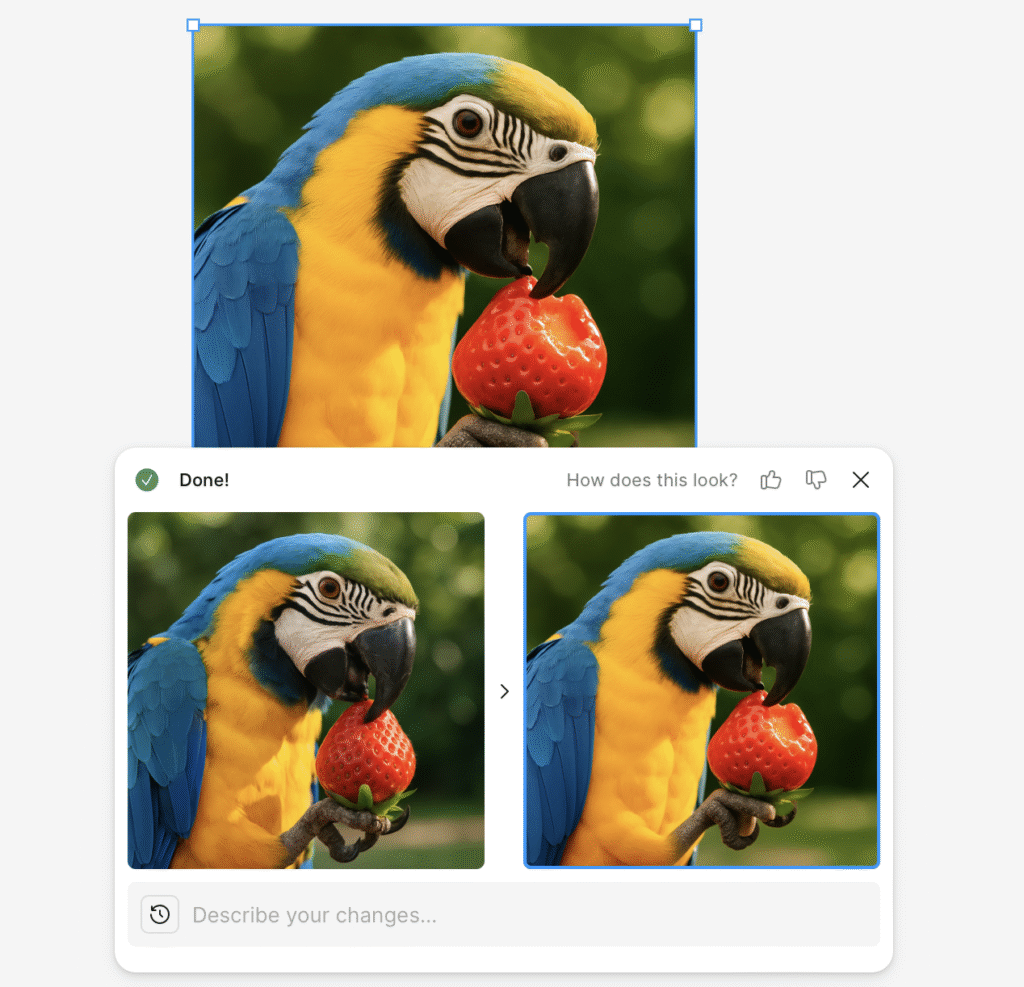
"I don't want the parrot to have green on its head. Only yellow and blue on its body. The strawberry should look a little bitten because it has been bitten before by the parrot."
The system generates a new version and shows a comparative view with the before and after, which facilitates decision-making and visual iteration.
Is the tool worth it «Make an image» of Figure?
Yeah, definitely. Make an image is a tool with a lot of potential for designers. From my experience, it provides speed, flexibility and direct integration into the workflow.
- Ideal for prototyping or visual ideation
- Allows immediate adjustments from text
- It is directly integrated into the canvas
- Reduces external resource dependence
As a designer, I highly appreciate the tools that allow me to iteration with agility and keep me focused on design. This functionality, no doubt, is a big step in that direction.
UX / IU Designer and Digital Marketing Specialist
Creating intuitive experiences and effective strategies.