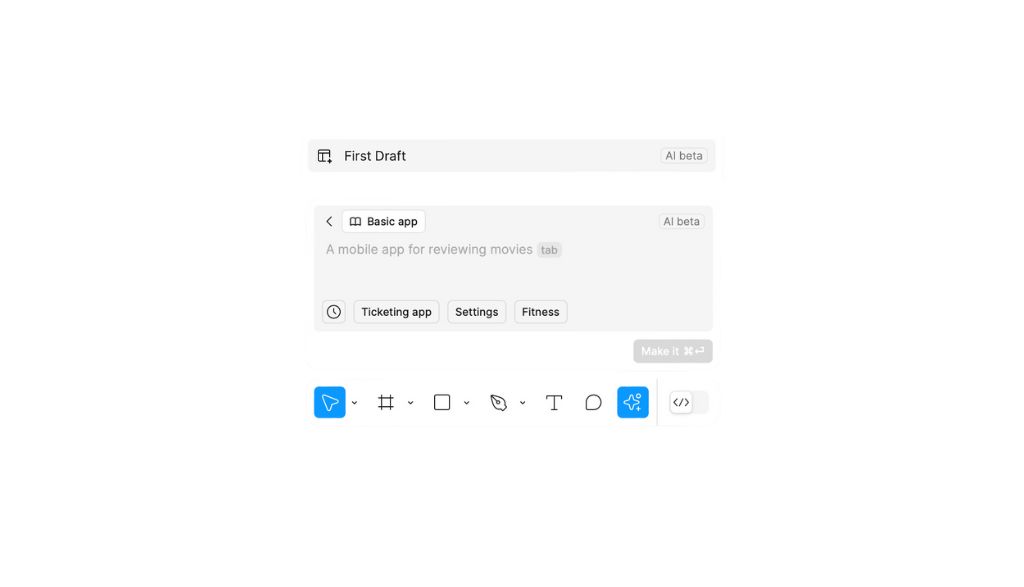
First Draft of Figure is an innovative tool that facilitates the design process for web and mobile applications, providing a quick solution to create from wireframes up to complete visual designs. In this article, we will explore how to start using First Draft, the different test options and the key benefits that this function offers for designers.
First steps of the First Draft of Figure
To begin with, open the First Draft on Figure and select the type of design you need: web or app. Then decide whether you prefer a full visual design or just a wireframe as an initial guide. Once selected, you can write a text describing what you want to generate.
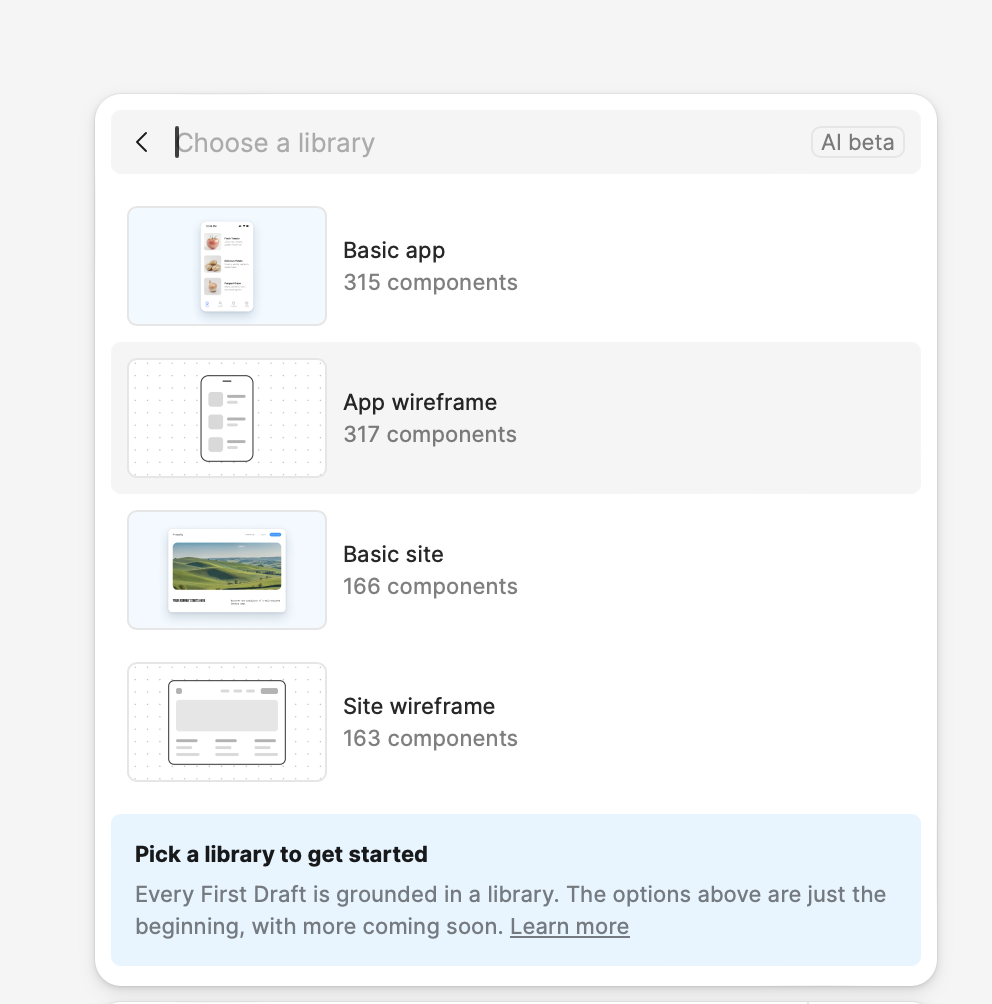
Once you have defined these aspects, write a brief description of what you want to generate; Figure will be responsible for materializing this idea in a visual design. In my case I will teach you two methodologies that I have put to the test so that I can fully squeeze the functionality of the tool.
In order to test this tool, we will create a ecommerce for sale of pastries and pastry products. The idea is to design a very visual page, with a predominantly pink aesthetic that evokes the sweetness and freshness of a modern pastry.
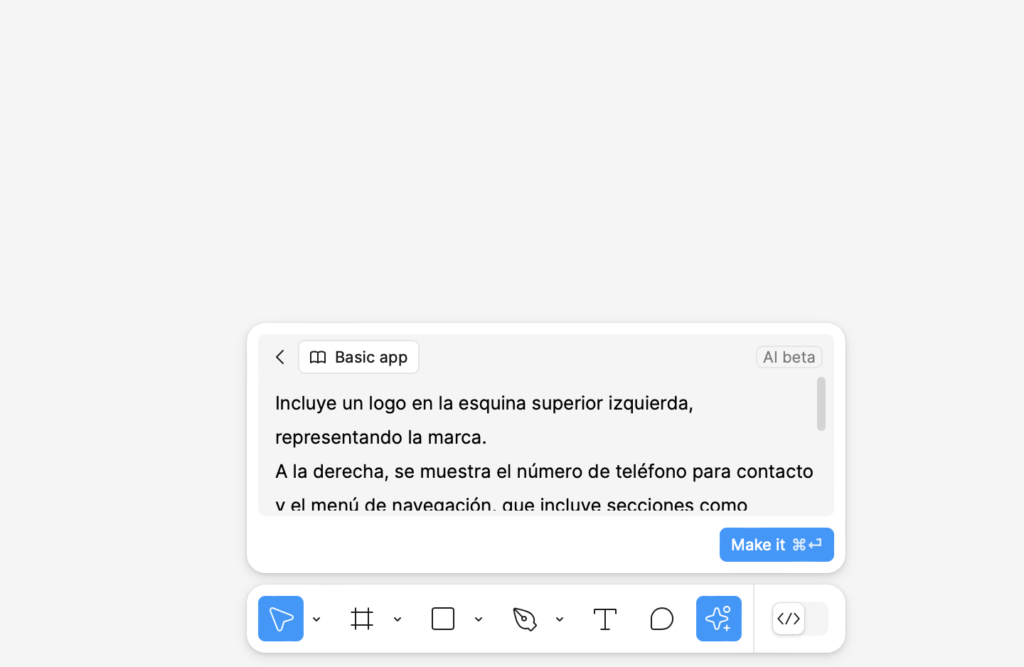
Testing First Draft on Web
To test First Draft of Figure in web design, I chose to evaluate two different approaches. Comparing in parallel to using a general description of the business with the option to generate a detailed description of the blocks to see which one was best:
Option 1: Generic Business Description
In this initial test, we provide only one brief description of the company. This option is ideal when you want to visualize a basic and fast idea without getting into specific details.
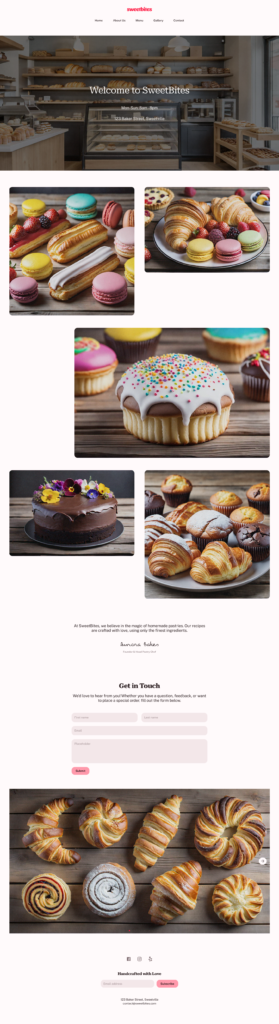
In this case, Figure generates a general design that captures the essence of the company, although without a personalized disposition of the content blocks. It can be a good option when you are not clear which blocks you need or even in an inspirational way. But I certainly think in version 2 we can make a lot more of it as you will see below:
Option 2: Defined Blocks and Specifications
The second test involves defining the content blocks and its order, adding details on the elements in each section. In this case I thought very well about the detail of the blocks, the content, what I wanted and how for each section. Including everything that would be colors and styles of the elements to get the desired design:
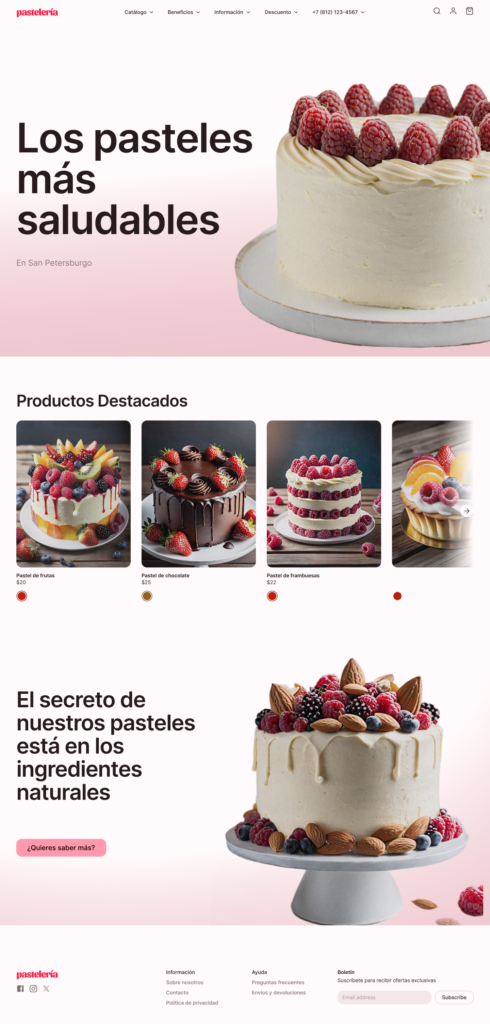
This specification allows Figure create a more structured design adapted to our needs, saving time in the organization of the blocks and facilitating future adjustments.
The first option, with a generic description, was useful to create a quick visual sketch of the site. However, define specific blocks in the Option 2 proved to be much more effective in obtaining an adapted and functional design. The conclusion is clear: The more detailed the initial entry, the more precise and personalized the design generatedby Figure AI.
Testing First Draft in Mobile
The test of First Draft on mobile devices follows a process similar to that of the web version, with two main options one with more general text version and a second in which I work plus the information I provide on the blocks. Let's check it out!
1. Option 1: General description
In this first option, I provided only one brief description of the company, without specifically defining the content blocks. Figma took this general information and generated a basic mobile design, useful as a visual starting point.

The tool captured the essence of a pastry in terms of colors and elements, but without a detailed or personalized provision of the sections. This option is ideal when looking to quickly visualize an idea without stopping in specific specifications.
2. Option 2: Specific definition of blocks
The second option involved a greater specification, defining the content blocks that he wanted in the mobile design and detailing the order and information that each section should show. This approach allowed First Draft adapt the design to the specific needs of an online store, including outstanding sections for products, special offers and banner, all in an optimized format for a user experience on mobile devices.

If you want to explore the full design, review the details of each element and visually compare both versions, you can do it in my Figma in the following link: See tests in Figma. Here you can see how First Draft interprets and adapts each option in the design of the pastry ecommerce.
Benefits of First Draft of Figma
When implementing First Draft In the design process, professionals find a powerful tool that accelerates the development of visual ideas and simplifies the creation of digital projects. Whether it is to generate a first sketch to be inspired or to structure a complete and functional design, First Draft offers multiple advantages that optimize workflow.
Then we explore the key benefits of this functionality and how it can help designers and teams create effective projects in less time.
- Guide to structuring: The generated blocks help to quickly visualize the flow of the page or the app.
- Initial design eraser: It provides a starting point, ideal for not starting from scratch.
- Visual inspiration: It is useful to get quick design ideas and explore possible approaches.
- Time savings in settings: It allows minor changes to be made quickly without losing visual cohesion.
I think all these new things that bring us Figma will be very interesting and will no doubt make a difference in how we approach the design process.
Exploring Other Additional Functions of First Draft
In addition to generating visual content, First Draft includes options to experience and make design settings:
- Color modification: Try different pallets, including dark modes and custom options that reflect the identity of the brand.
- Type change: Experience with different sources to assess how they affect the aesthetics and legibility of the design.
- Spacing and rounded settings: It improves usability by adjusting the spacing and the radius of edges between elements, perfecting the aesthetics.
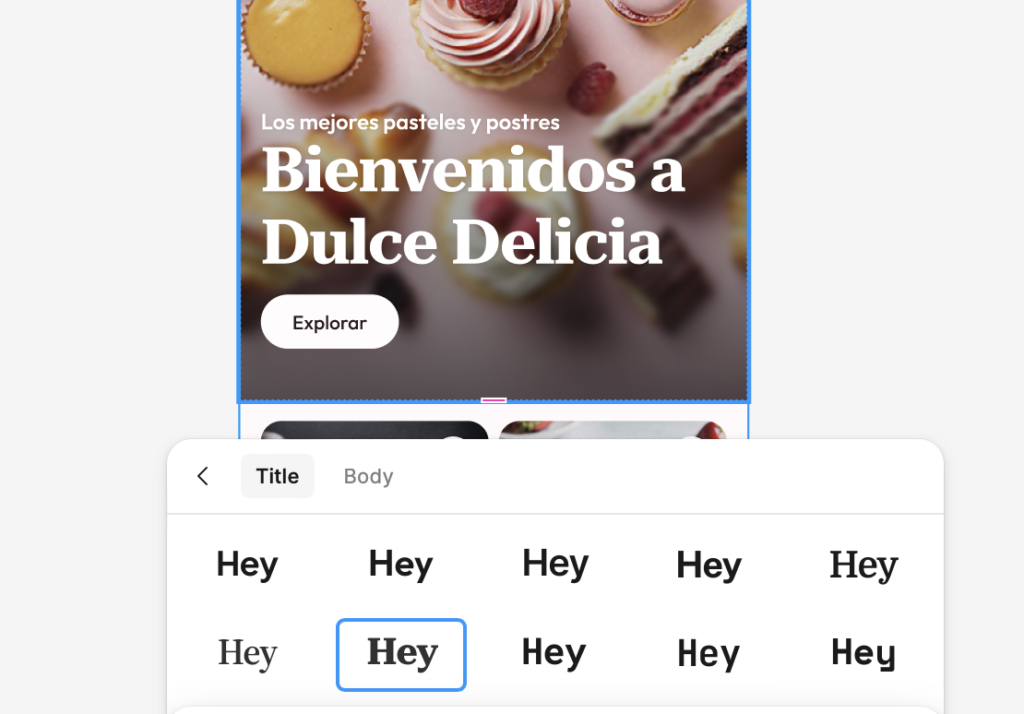
First Draft of Figma It is an ideal tool for designers who seek to optimize their workflow by creating visual concepts quickly and efficiently. Whether to get an initial draft or to explore complete web and mobile designs, this function facilitates the creative process and allows designers to focus their energy on improving visual experience.
When will I use First Draft?
In my personal case, I think First Draft can be especially useful to overcome creative blocks. There are times when we need an impulse to visualize ideas, and this tool becomes a perfect ally.
I think, above all, of the section on wireframes: Although I like to always start with a paper outline, First Draft allows you to quickly move that initial concept into digital format, giving it a more formal structure that I can present to the customer in a short time.
In addition, this functionality makes it easier to experiment with different versions of the design without losing the workflow. Making quick color or even version tests «dark mode».
Do you encourage yourself to try? First Draft on your next project?

UX / IU Designer and Digital Marketing Specialist
Creating intuitive experiences and effective strategies.